[Site Name]
[domain_name]
(999) 999-9999
[address1]
[address2]
[City, State Zip]
Touch Panel Setup
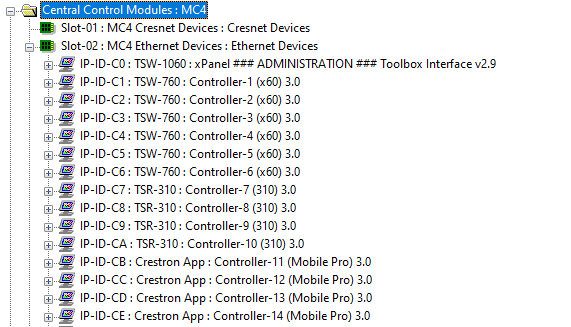
The HADA Core is pre configured with 15 touch panels , 1 for the admin interface and 14 for use by end users. These can be reconfigured as needed for the specific customer needs, however we have found that this layout gives the most flexibility with the least amount of reconfiguration.
- 1 - TSW-1060 Touch Panels
(accessed via emulator)
IPID: C0
This panel is required for configuration and use - 6 - TSW-760 Touch Panels
IPID's: C1-C6
Re-Configurable Panel - 4 - TSR-310 Hand Held Remotes
IPID's: C7-C10
Re-Configurable Panel - 4 - Crestron Pro Mobile Device App
IPID's: C11-C14
Re-Configurable Panel
Changing the Panel Type
Changing the panel type is an advanced feature. Crestron Training in SIMPL Windows level 2 is recommended.
Always Save your Changes (if any) at EACH Step!
To change a panel type you will need to:
(Note: a step by step procedure list is shown after the overview)
- 1. Replace the panel you want to switch to the new type:
For example, you could replace a TSW panel with a TSR-310, or any other of the available types.
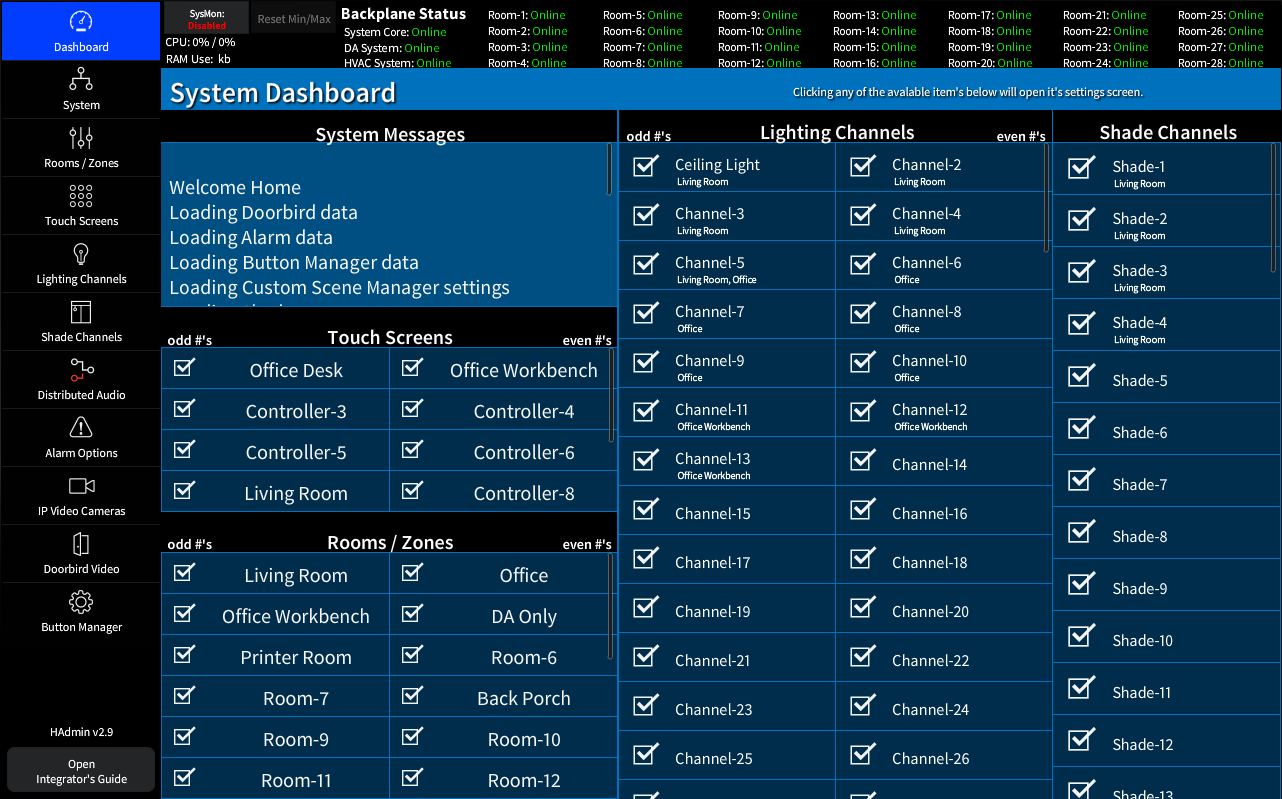
Note: if you want to use a panel other than the ones supplied by us, you will need to refer to the Interface Project section of the documentation to view a full signal list. - 2. Copy The Signals, Once the panel is added, use the Crestron Special Copy by Right Clicking + Hold + Drag from an existing panel of the NEW type you just added, onto the NEW panel you just added.
For Example: If you changed the TSR-310 located at IPID: C7 to a TSW type panel, you would Right Click, Hold and Drag FROM the TSW Panel at location C6 ONTO the new blank panel you just added at C7.
Once you release the mouse drag you will see a context menu popup like so:
- 3. Verify the configuration. since changing a panel directly effect the functionality of the system, there are a few verification steps that should be taken. The SIMPL Windows Editor, in an honest attempt the help the programmer, will sometimes try and add or remove additional symbols that in this system are already configured. Thus IF the SIMPL editor modifies them it may cause problems. This annoyance is typically associated with the media player and channel favorites connector symbols.
There is a simple check of one folder will allow you to see if this has happened:- Expand the Media Connectors Folder at the bottom of the Logic List of the HADA Core
- Each of the symbols have an associated IPID in the displayed name.
There should be 2 symbols in this for each IPID:
- Media Server Object Router
- TV Presets CRPC Interface
Verify that there is only one of each symbol for each IPID.
If there are only one of each pair for each IPID then you are fine and no editor changes happened. You can stop here and procced to deploying the system.
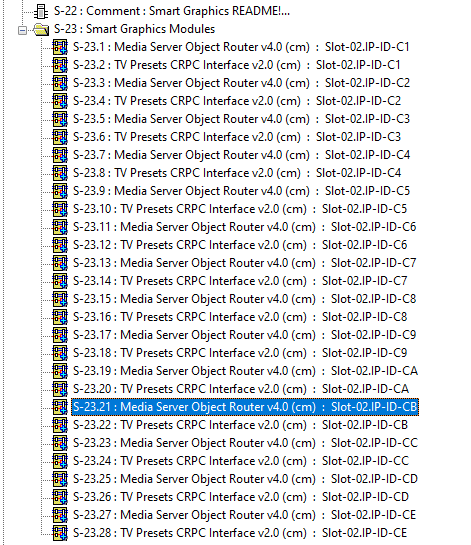
- 3a. If there were more symbols than there should be based on the verification step then you can use these example to see which of the extra symbols to delete.
DO NOT GUESS! Follow These Steps Exactly!
-
Open the suspect symbols for each IPID one set at a time. This means that at most there will be 4 symbols open in you editor window.
*This assumes worst case and both required symbols were duplicated. -
once all symbols are opened the differences are visually obvious with the bad symbols missing key signal names.
The one's you want to Keep will look similar this: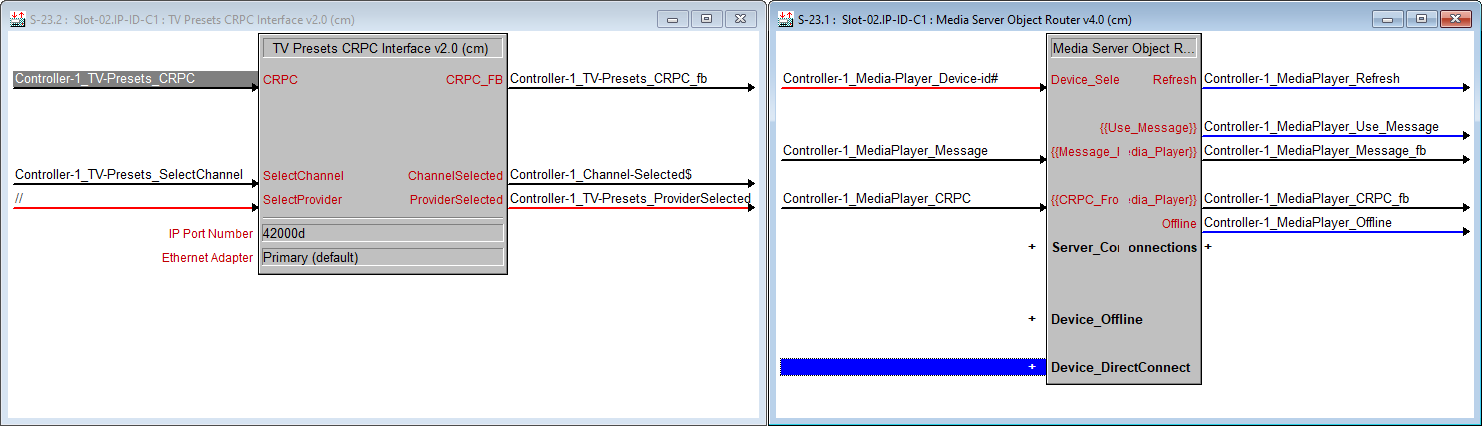
- Sanity Tip: Save your changes BEFORE making the changes so that just incase you delete the wrong one, you can just reopen the file to recover to this point.
- Delete the Symbols with the missing signals. Then you can repeat the steps for each of the additional questionable symbols. If you are doing these steps for each panel you are changing one at a time then you should only ever have one set of symbols to fix if any at all.
-
Open the suspect symbols for each IPID one set at a time. This means that at most there will be 4 symbols open in you editor window.